The Complete Formatting Blueprint: Double Spacing in Word for Apa 7, Mla 9, and Chicago Style
 By Sophia Al-Mansoor
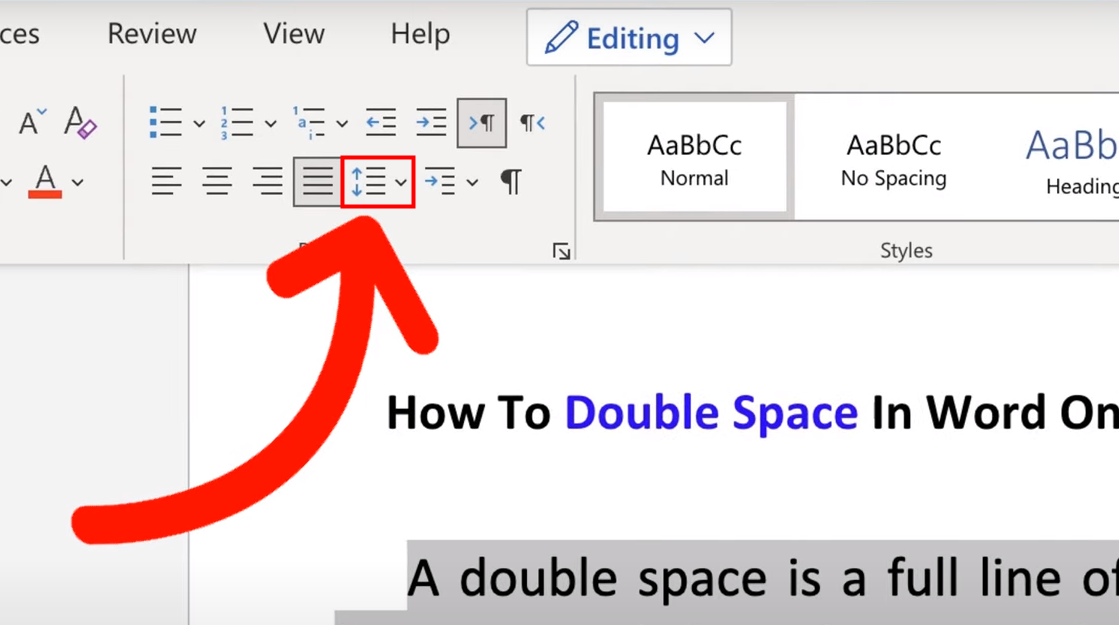
Executing a simple 2.0 command rarely produces compliant academic copy on its own. Microsoft Word automatically appends an 8-point padding after every carriage return. In an academic manuscript, this creates an awkward, oversized gap between paragraphs that signals a formatting mistake to eagle-eyed instructors.
Under official APA 7th edition formatting and MLA 9 style guidelines, body text requires consistent vertical height throughout. There should be no supplemental gaps between paragraphs, as the standard 0.5-inch first-line indent already flags the break to the reader.
To eliminate these extra spaces:
- Select the affected manuscript body.
- Open the Home tab ribbon and click the Line and Paragraph Spacing button.
- Inspect the bottom of the drop-down list. If you see Remove Space After Paragraph, click it immediately.
- To confirm the values manually, select Line Spacing Options to bring up the Paragraph dialog box.
- Under the Spacing section, confirm that both Before and After are set explicitly to 0 pt.
| Academic Style Guide | Body Text Spacing | Block Quote Rules | Reference Section Requirements |
|---|---|---|---|
| APA 7th Edition | Strict 2.0; 0 pt before/after | Double-spaced; indent entire block 0.5 in. | Double-spaced; 0.5 in. hanging indent; 0 pt after |
| MLA 9th Edition | Strict 2.0; 0 pt before/after | Double-spaced; indent 0.5 in. from left margin | Double-spaced Works Cited; 0.5 in. hanging indent |
| Chicago (Notes & Bibliography) | Strict 2.0; 0 pt before/after | Single-spaced (1.0); blank line before and after | Single-spaced internally; double space between entries |
Sophia analyzes international trade, startup ecosystems, retail transformation, and supply chain logistics for modern digital publications.
