How Windows 11 Updated Screen Recording: from Snipping Tool Video to Native Audio Capture
 By Maya Lin-Takahashi
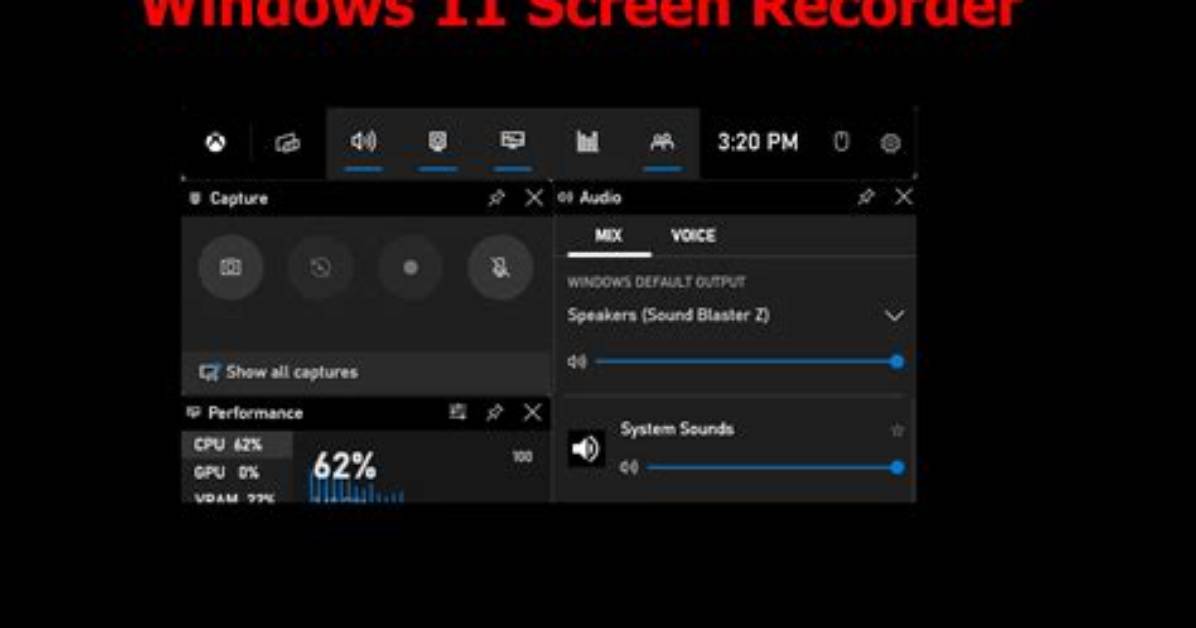
Choosing between built-in utilities and dedicated open-source applications depends largely on target frame rates, processing overhead, and audio routing. The table below outlines how standard options stack up on modern PC configurations.
| Feature / Metric | Windows Snipping Tool | Xbox Game Bar | OBS Studio |
|---|---|---|---|
| Target Scope | Selected rectangular areas | Single active application | Full desktop, scenes, windows |
| Target Frame Rate | 30 FPS standard | 30, 60 FPS selectable | 60 FPS capture quality & higher |
| Audio Channels | System + Mic (Single mixed track) | System + Mic (Per-app sliders) | Unlimited multitrack audio routing |
| Default File Output | MP4 export directory prompt | Auto-saved MP4 in Captures folder | MKV, MP4, MOV custom paths |
| System Resource Use | Extremely low (0.5%, 2% CPU) | Moderate background usage | Scalable via GPU encoder profiles |
Maya is a hardware enthusiast who tests and reviews smart home devices, smartphones, wearables, and audio gear. She focuses on practical consumer value and build quality.
Tags:
how to screen record on pc
